I'm new to Scribus, and currently working through the official tutorial.
Keyboard shortcuts follow my usual convention A-C-M-S-key where A-C-M-S
refers to the modifiers Alt (aka Option), Control, Meta (aka Windows/Command), Shift.
Keys are then written lowercase so that C unambiguously means Control, and
c unambiguously refers to the key C. So capitals are written as S-c.
1
There are two sets of properties: the properties of a box such as a text or image box; and the properties of the content within such a box.
Keys in Layout
| Key | Action |
|---|---|
f2 | Box Properties |
f3 | Content Properties |
t | Add Text Box |
C-t | Edit Text in Story Editor |
i | Add Image Box |
Keys in Story Editor
| Key | Action |
|---|---|
C-w | Update Text Frame and Exit Story Editor |
C-u | Update Text Frame |
Text
- Centering text vertically: Content Properties → Columns & Text Distances → Vertical Alignment = middle
Kerning Tracking Etc
See this Linux Journal article
- Leading = line spacing
- Kerning is what happens with the space between, say A and V in AV.
- Tracking is the space between letters and words.
These are found in Advanced Settings in the Text Properties toolbox.
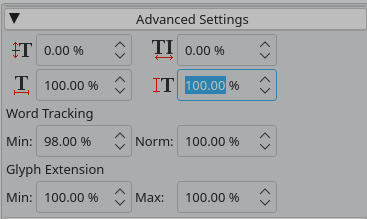
If you apply this to the text box, it applies to everything within it. Importantly, note that this erases an settings applied to a selection within it (e.g. if you change the letter tracking for an individual word).
Master Pages
- Edit → Master Pages
- Create New
- Page → Manage Guides
Master Pages
Create in Edit → Master Pages. Then there is a palette that allows drag and drop assigning
of master pages to document pages. Also one can select a master page when inserting.
| Key | Action |
|---|---|
A-C-S-p | Insert Page Number |